Intuitive organization
Create folders and drag links between them to keep related bookmarks together.
Minimalist yet powerful new
tab bookmarks extension
 Install for Chrome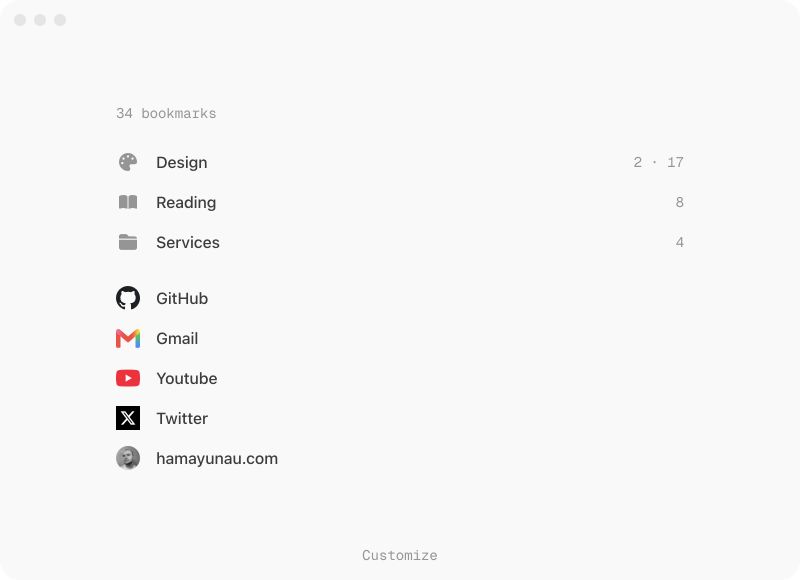
Create folders and drag links between them to keep related bookmarks together.
Find bookmarks and browsing history by title or URL from the new tab.
Search with your browser's default provider or open the query in ChatGPT.
Move, select, reorder, and open folders, bookmarks, and search results without reaching for the mouse.
Select individual items or draw a box around several bookmarks and folders.
Open selected links in a tab group, or move, export, and delete them together.
Copy bookmark URLs, cut bookmarks, or paste a URL to save it in the current folder.
Undo an add, edit, move, or deletion, including a deleted folder and its bookmarks.
Choose a color theme that follows your system’s light or dark appearance.
Give folders distinct icons so they are easier to recognize at a glance.
Search bookmarks and browsing history, search the web, or open a query in ChatGPT.
Move through bookmarks, folders, and search results.
Open the focused bookmark or folder.
Open the focused bookmark in a new tab.
Open the context menu for the focused item or the page.
Go back to the previous folder.
Exit search, close an open menu, or clear the current selection.
Jump between search result groups on Mac.
Add items to a selection or remove individual items from it.
Extend the selection from the focused item.
Select everything in the current folder.
Open selected links together in a tab group.
Delete the selected bookmarks and folders.
Copy the URLs of the focused or selected bookmarks.
Cut the focused or selected bookmarks and copy their URLs.
Save a URL from the clipboard in the current folder.
Move the focused or selected items within the current folder.
Undo the last add, edit, move, or deletion.